It looks like you’re visiting from the United States. For the best experience, please visit our U.S. website operated by Powerlube Industrial, our U.S. subsidiary and premium Memolub distributor.

Go to powerlubeind.com
  • Search Haku
  • My Memolub
  • Support & Knowledge Base
  • Connect Series Dashboard
fi
  • Dansk
  • Deutsch
  • English
  • Español
  • Français
  • Italiano
  • Nederlands
  • Norsk
  • Português
  • Polski
  • Swedish
  • Suomi
  • Türkçe
Memolub
  • Home
  • Tuotteet
  • Sovellukset
  • Toimialat
  • Meistä
  • Yhteystiedot
  • My Memolub
  • Support & Knowledge Base
  • Connect Series Dashboard
  • Search Search
Memolub App

MEMOLUB APP User guide

Read more Print Download Technical Data Sheet Download User Guide

YLEISTÄ

Apple Other brands
Requirements iOS 12.2 (or later). Android 7.0 (or later).
Requirements iPad OS 12.2 (or later). -
Requirements macOS 11.0 (or later) and
a Mac with Apple M1 (or later).
Available space needed 71,6 MB 71,2 MB
Compatible with Memolub HPS Blue and Memolub Connect Pro

STEP BY STEP

Install The Memolub App

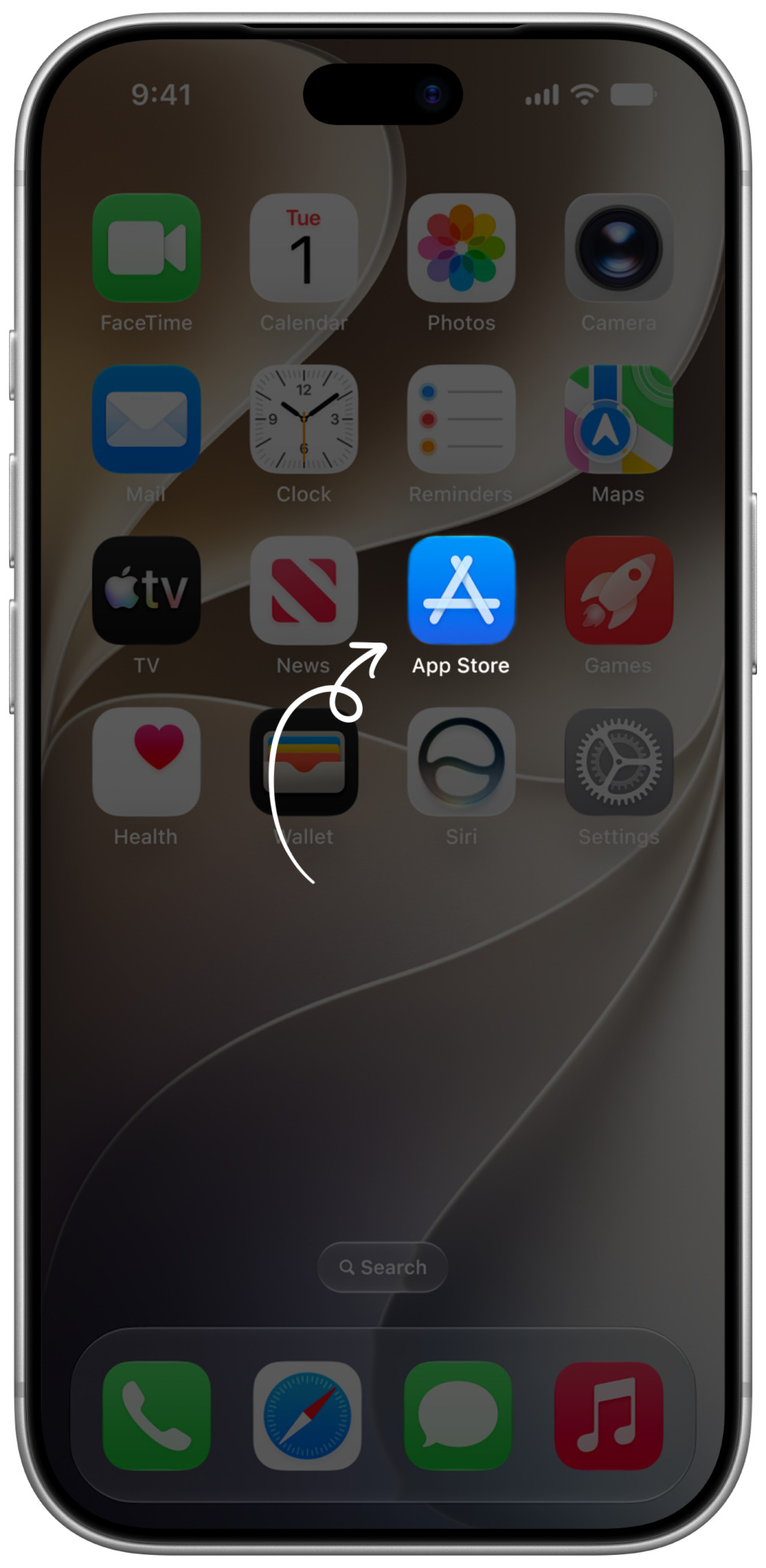
  • 1

    Memolub App Install App Store

    Go to the App Store / Google Play

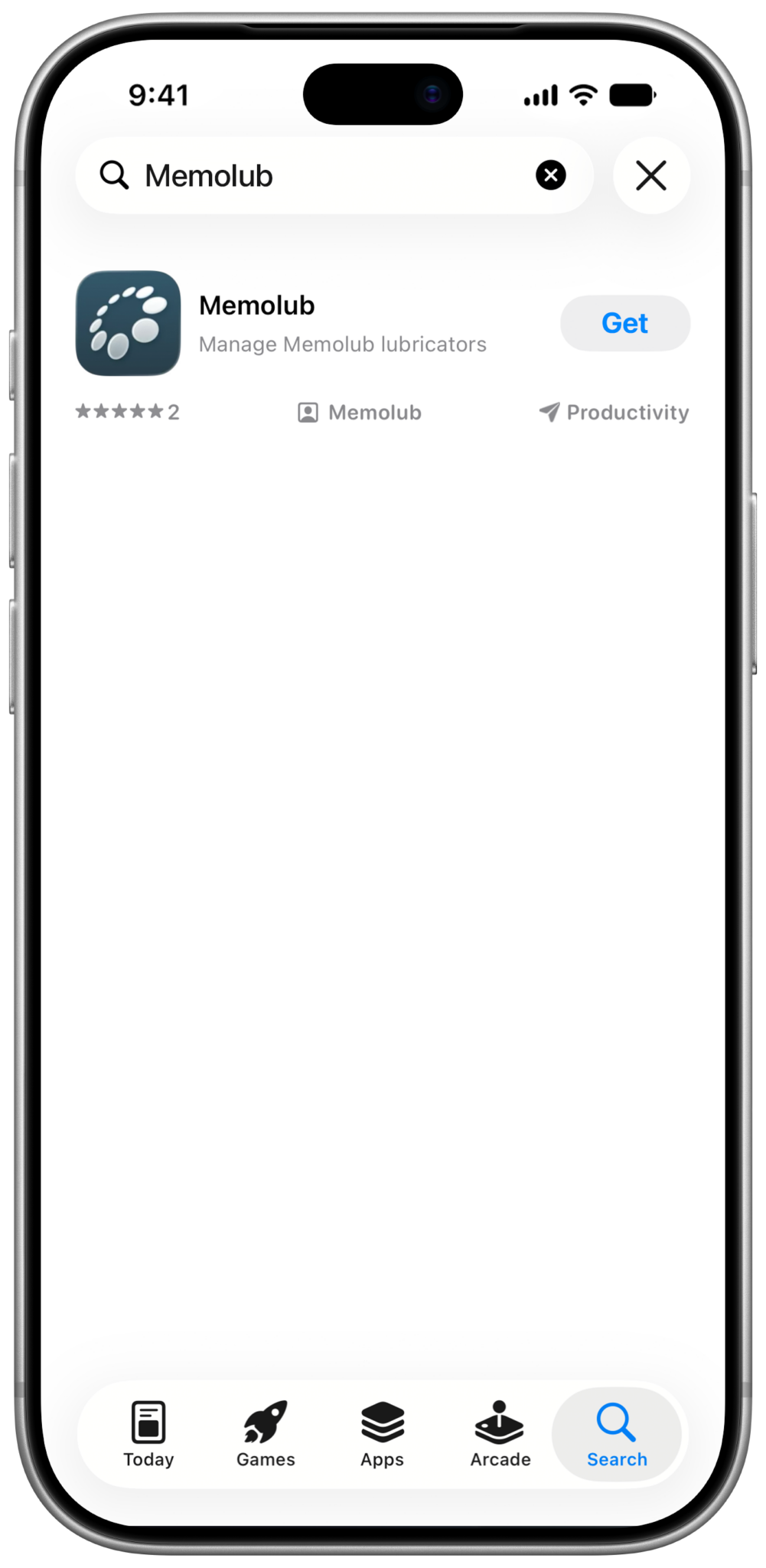
  • 2

    Memolub App Install App Search

    Search for the Memolub app.

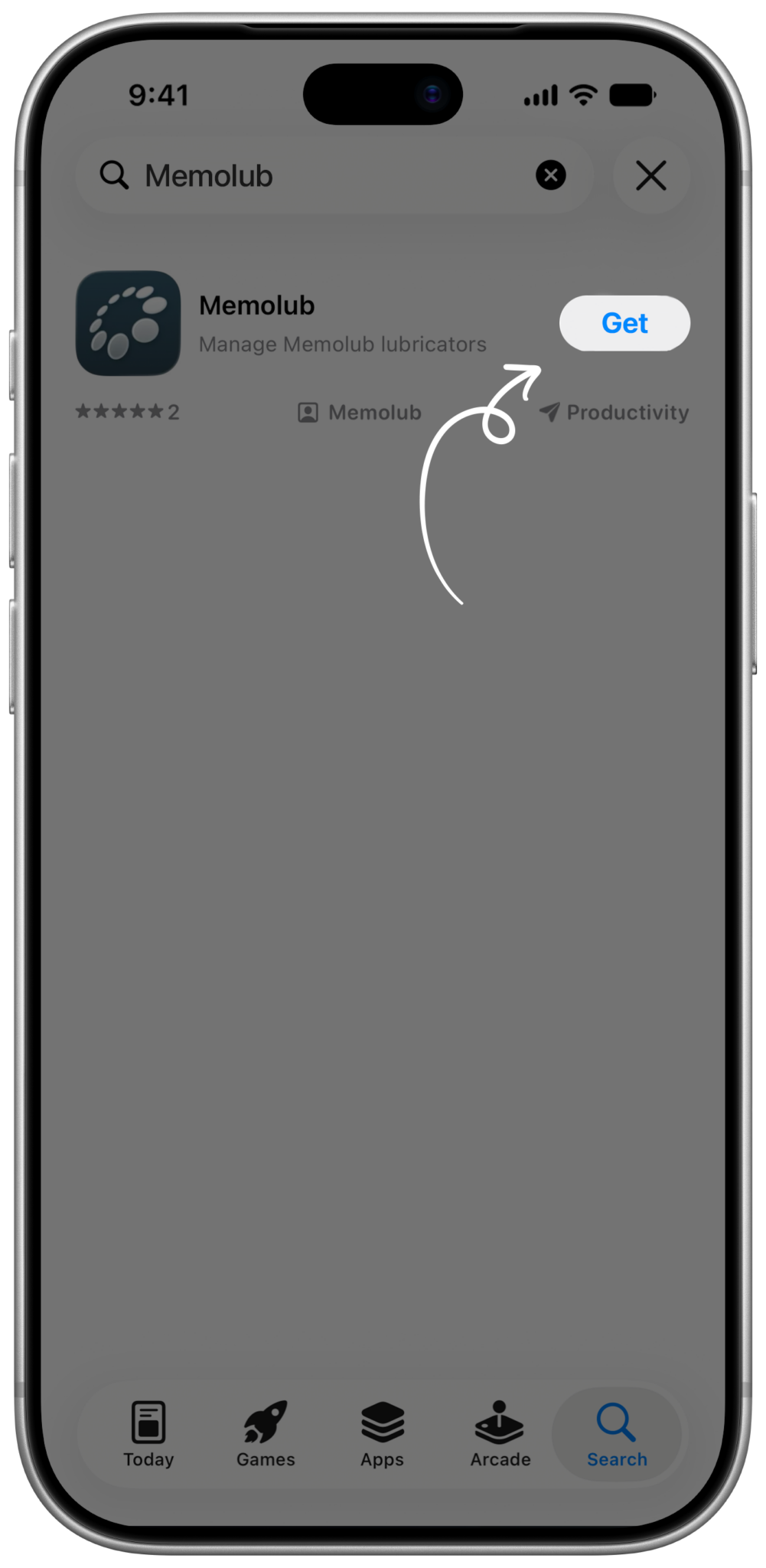
  • 3

    Memolub App Install Get App

    Tap the get the app button for immediate installation, tap the App icon for more info.

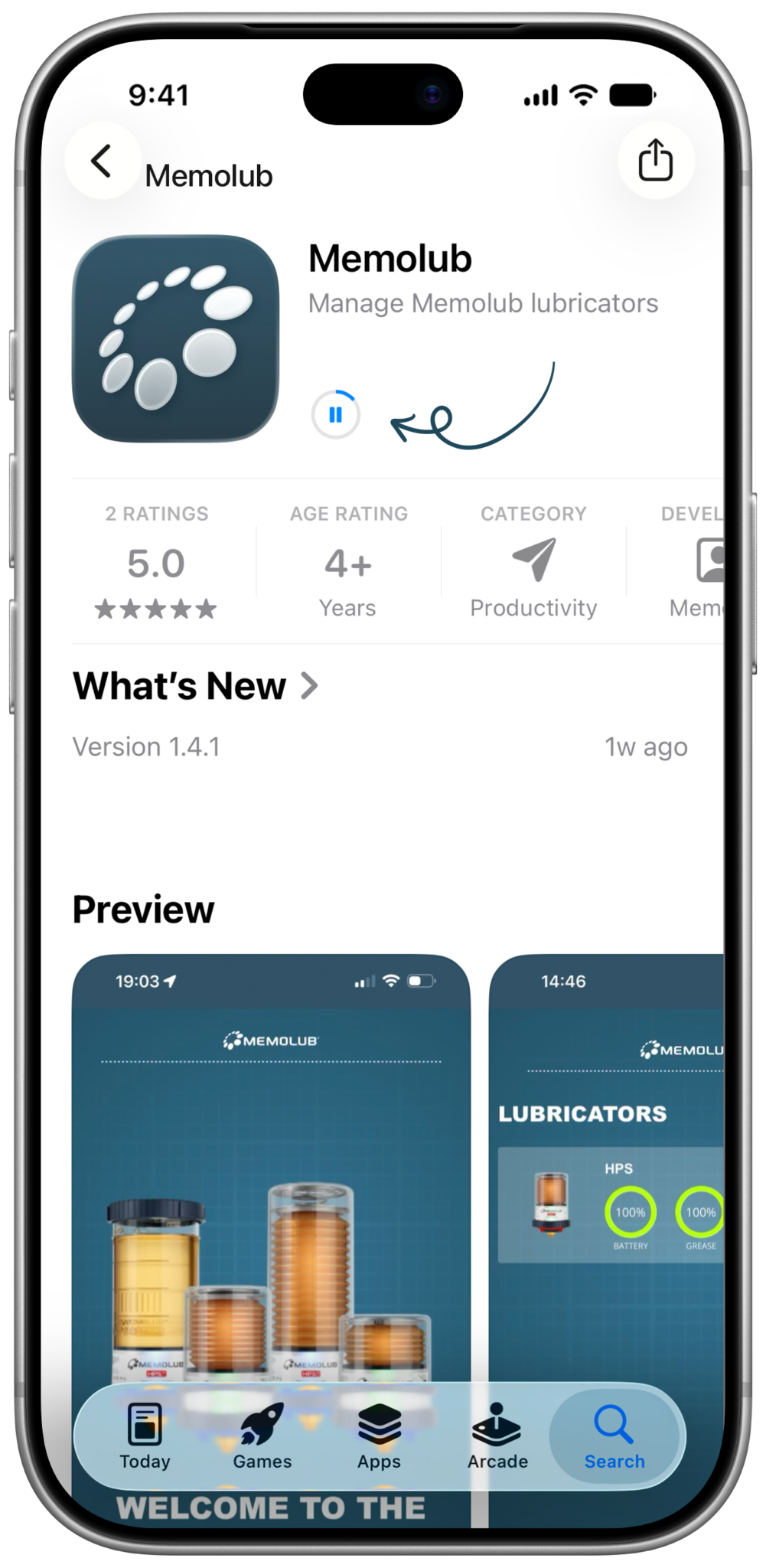
  • 4

    Memolub App Install App Download

    The app downloads and installs automatically.

  • 5

    Memolub App Install App Installed

    Find the Memolub app on your homescreen. Tap to open.

  • 6

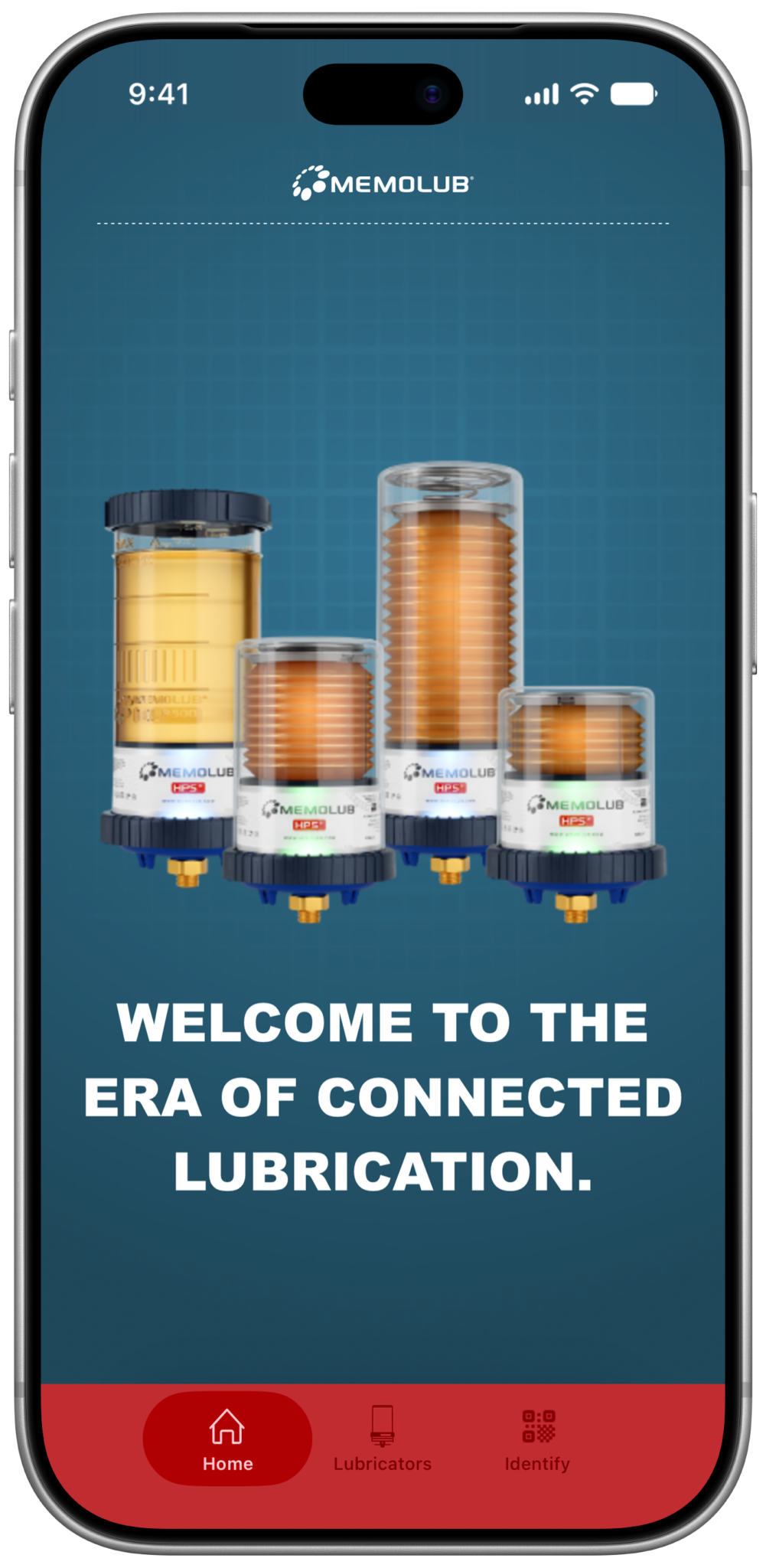
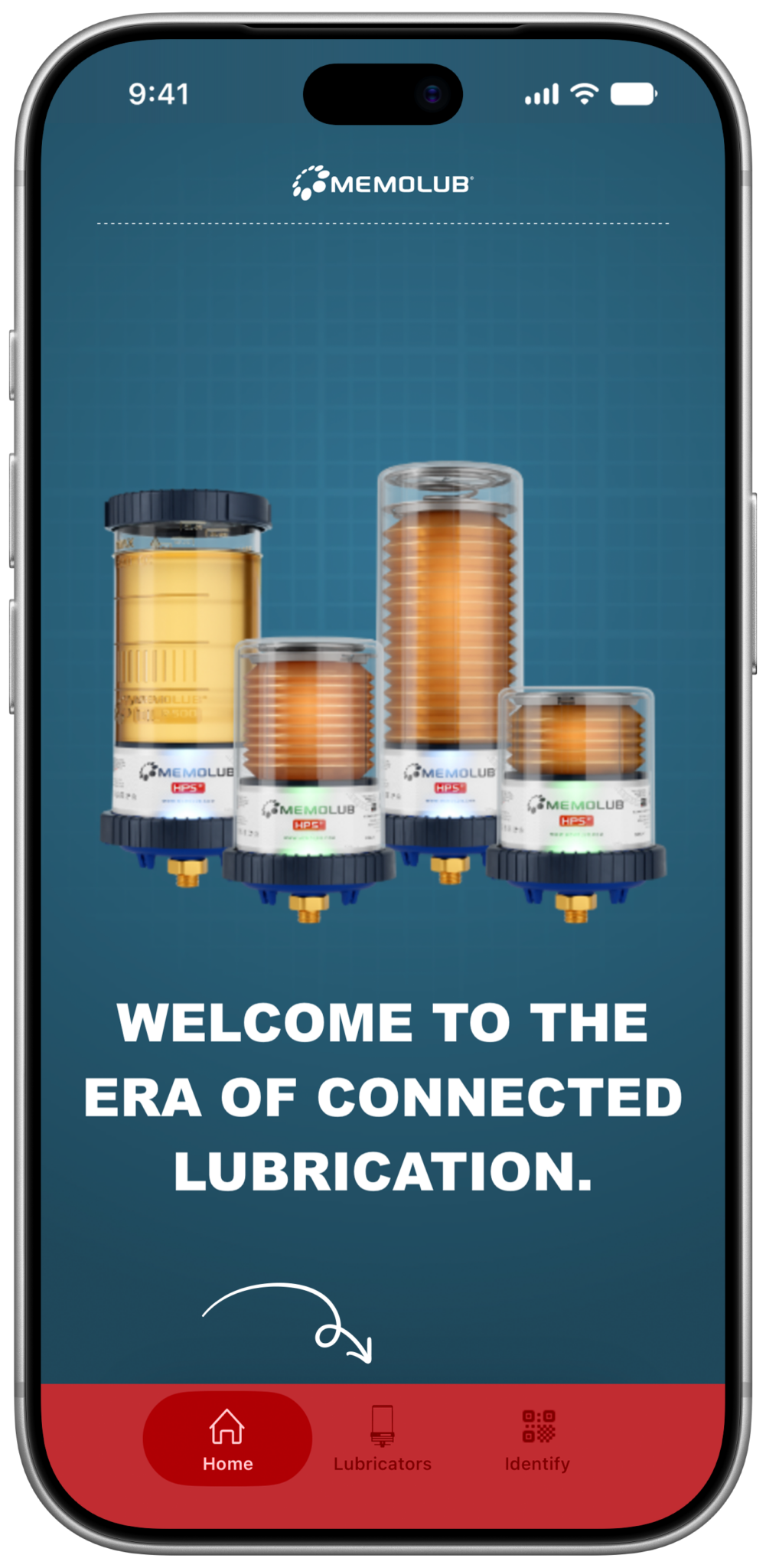
    Memolub App Running Home

    Well done, the app is up and running.

  • 1

    Memolub App Install App Store

    Go to the App Store / Google Play

  • 2

    Memolub App Install App Search

    Search for the Memolub app.

  • 3

    Memolub App Install Get App

    Tap the get the app button for immediate installation, tap the App icon for more info.

  • 4

    Memolub App Install App Download

    The app downloads and installs automatically.

  • 5

    Memolub App Install App Installed

    Find the Memolub app on your homescreen. Tap to open.

  • 6

    Memolub App Running Home

    Well done, the app is up and running.

Monitor your lubricators

  • 1

    Memolub App Lubricators Tab

    Tab the lubricators tab.

  • 2

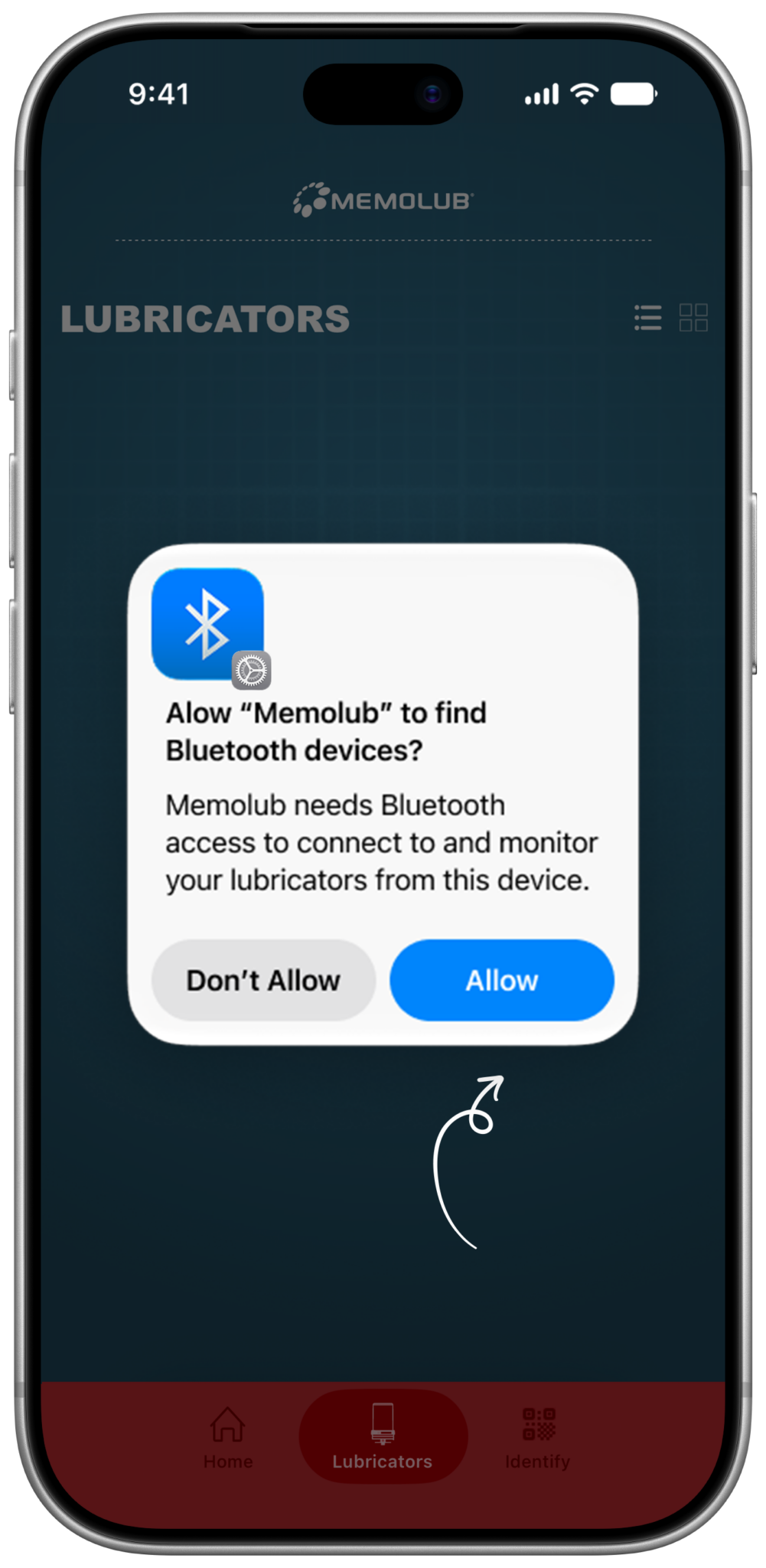
    Memolub App Allow BLE

    Allow Memolub to find bluetooth devices when launching the app for the very first time.

  • 3

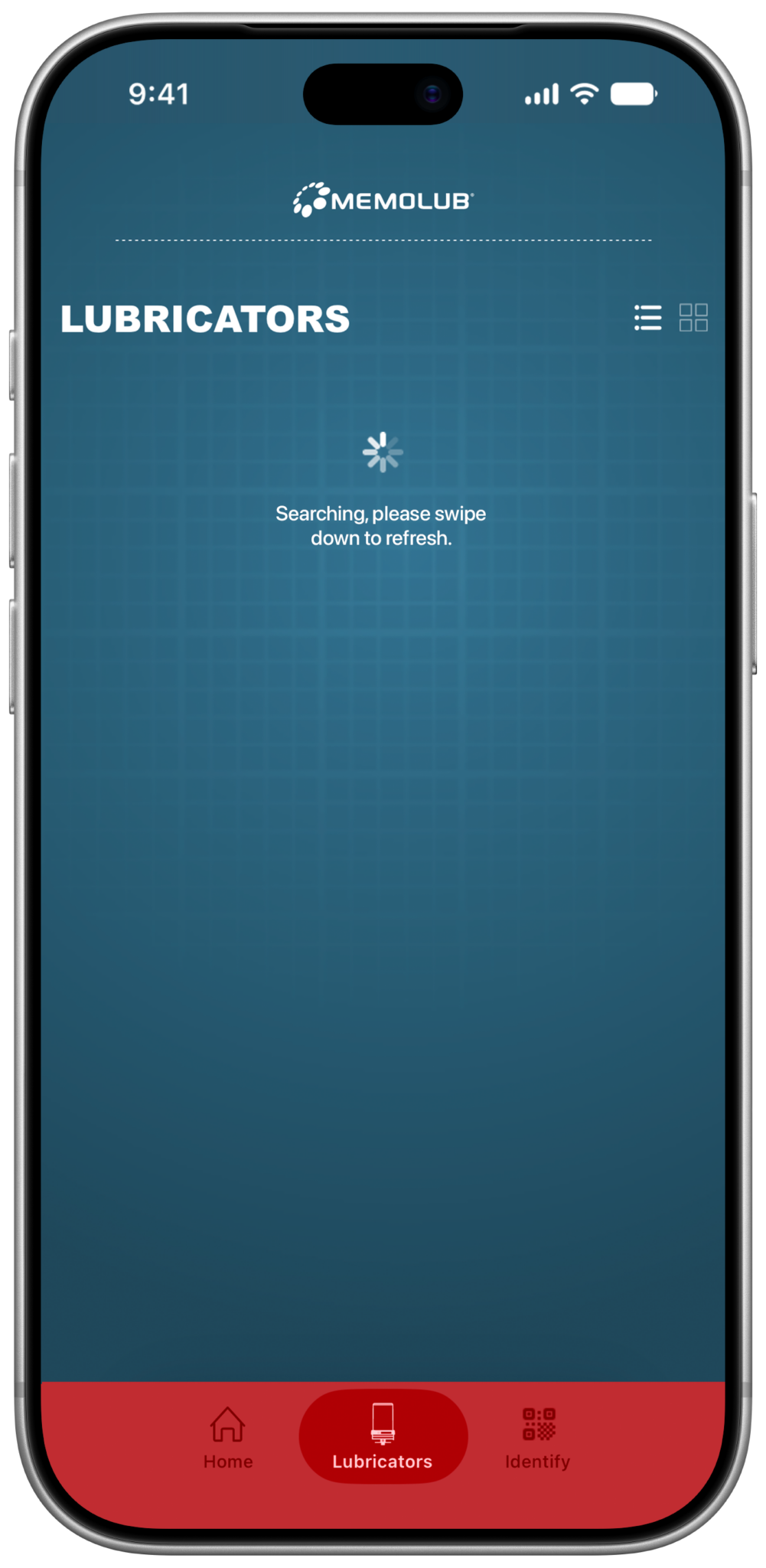
    Memolub App Refresh List

  • 4

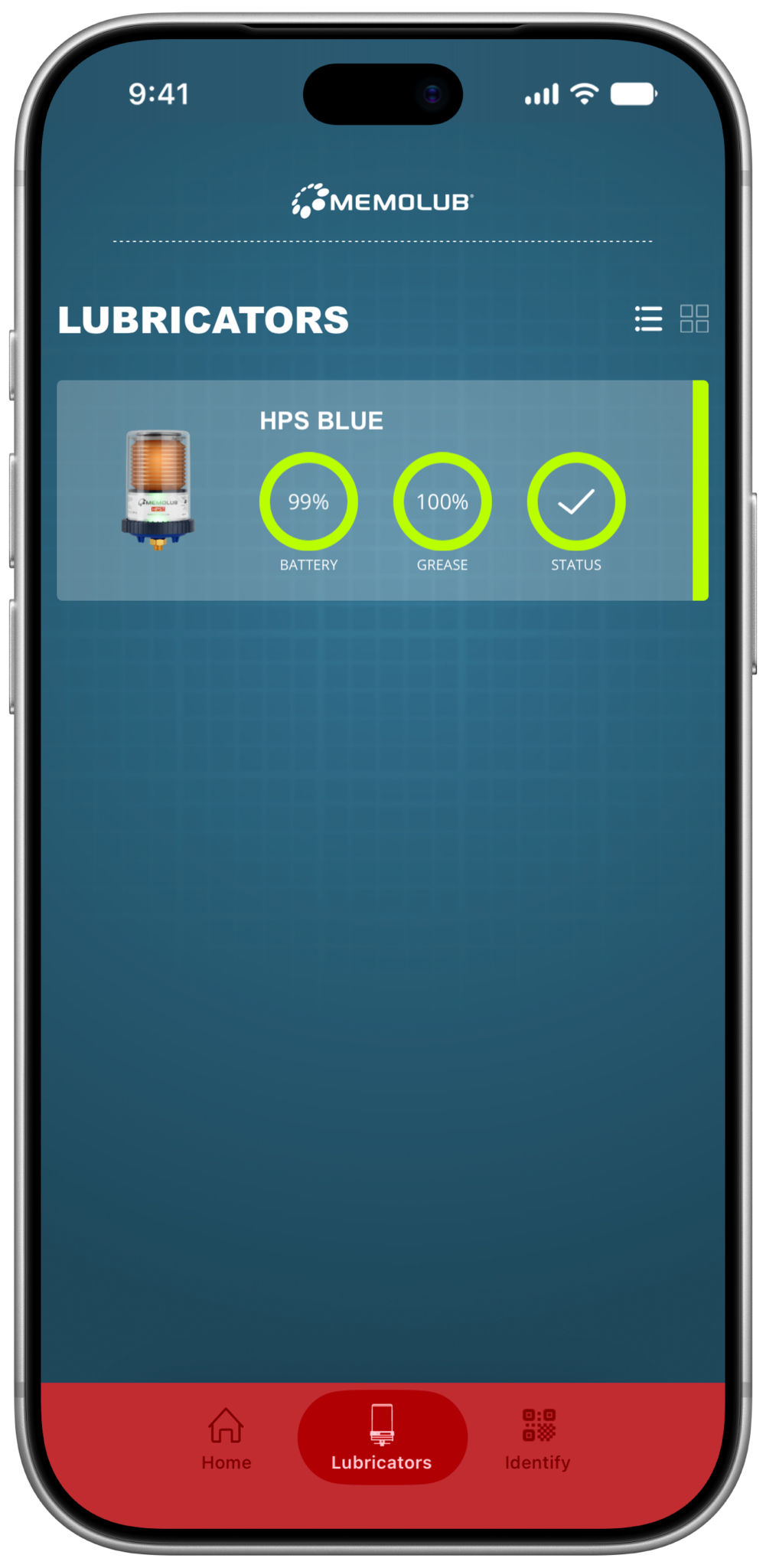
    Memolub App Lubricators Tab List

  • 5

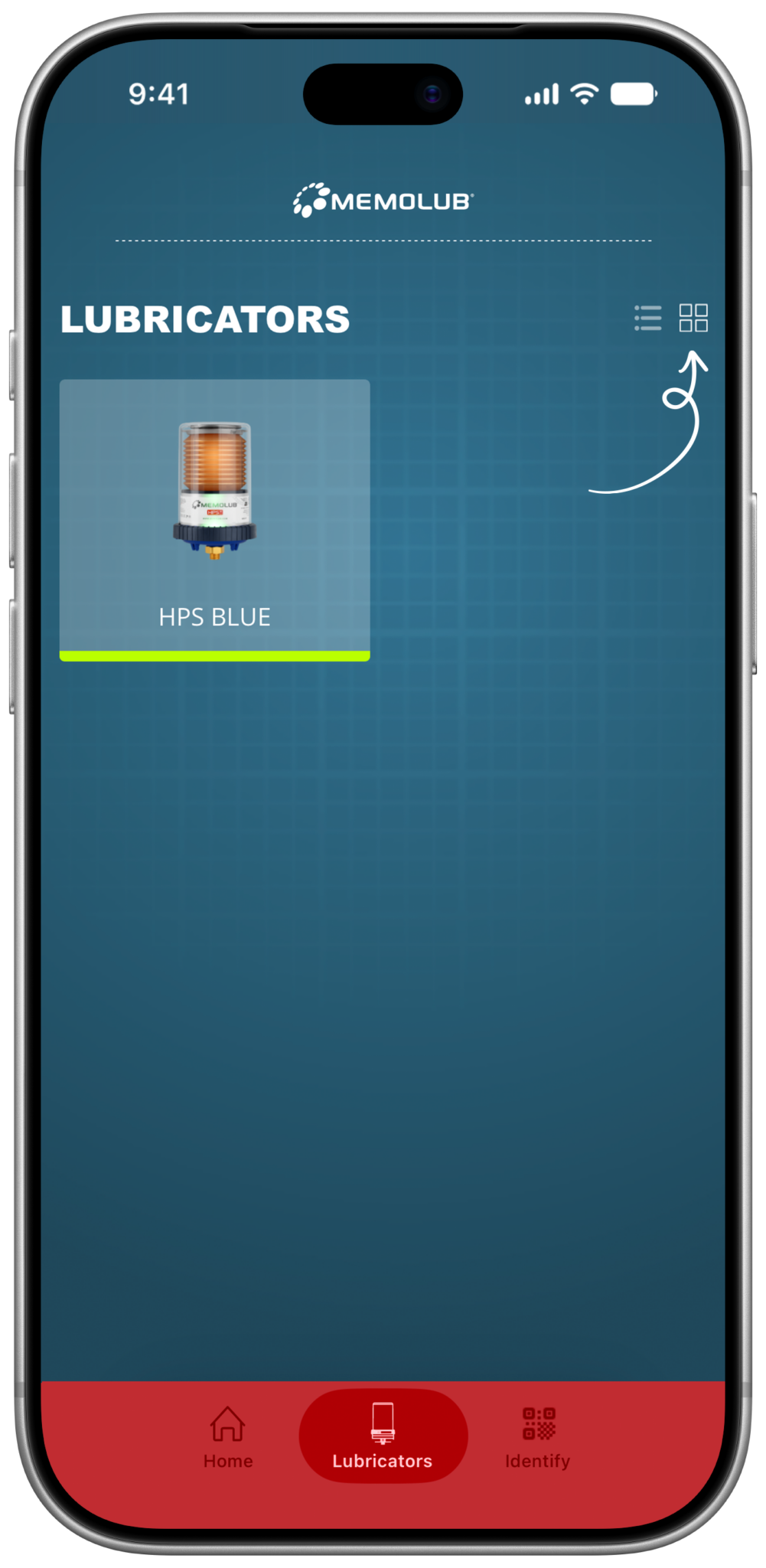
    Memolub App Lubricators Tab View Switch

    Switch view to tiles.

  • 6

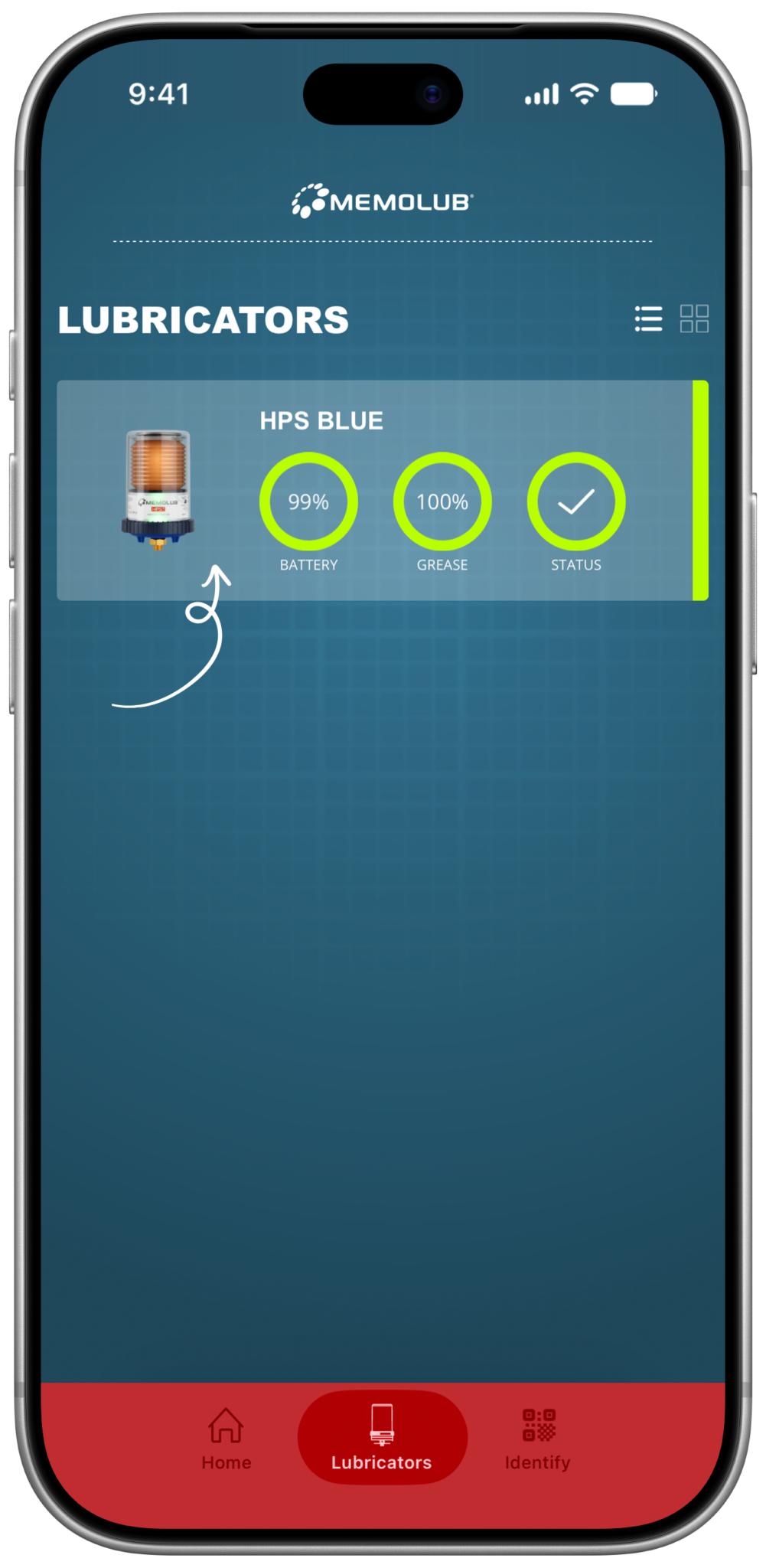
    Memolub App Tap For Lubricator Detail

  • 7

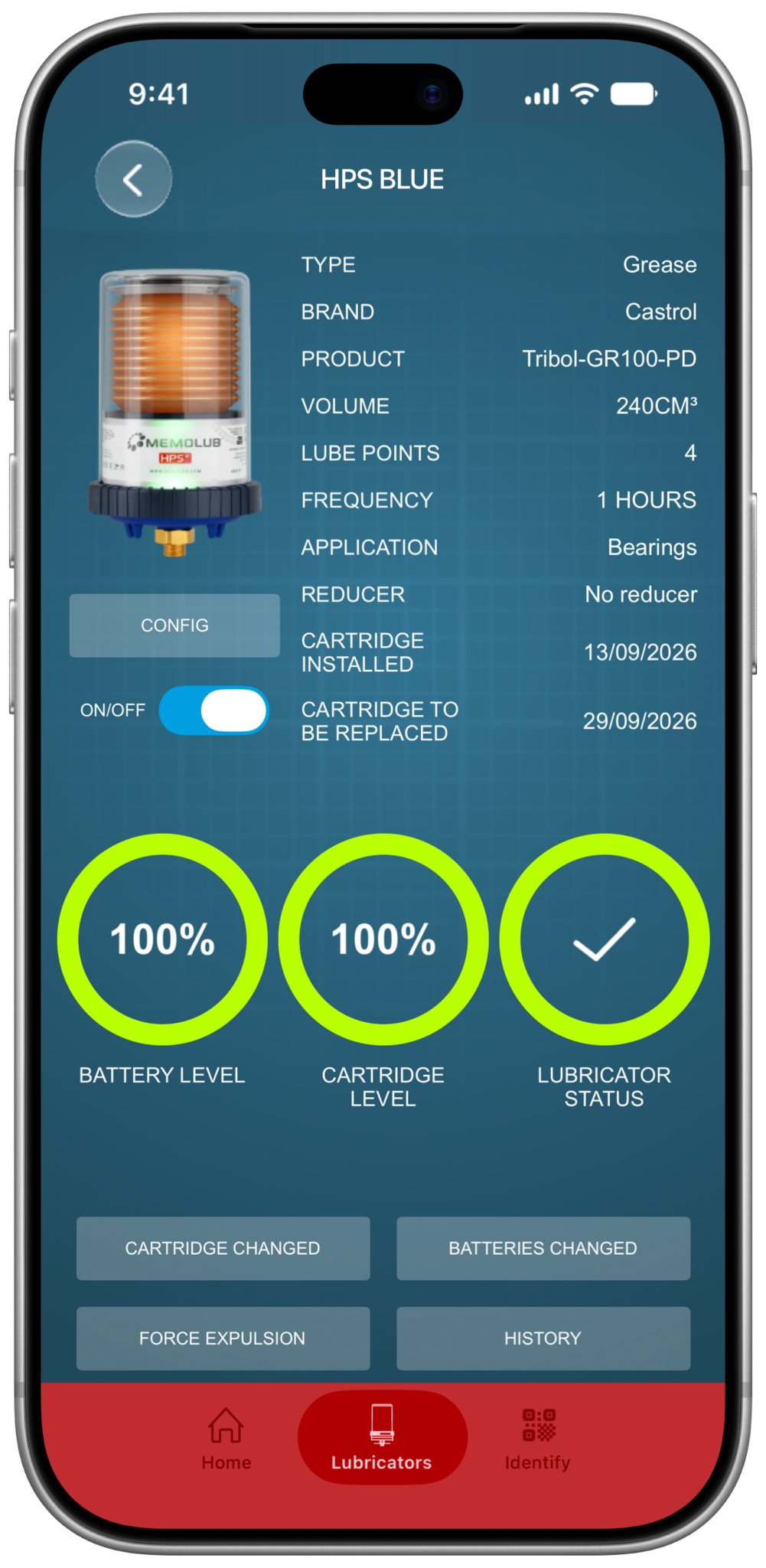
    Memolub App Lubricator Detail

  • 1

    Memolub App Lubricators Tab

    Tab the lubricators tab.

  • 2

    Memolub App Allow BLE

    Allow Memolub to find bluetooth devices when launching the app for the very first time.

  • 3

    Memolub App Refresh List

  • 4

    Memolub App Lubricators Tab List

  • 5

    Memolub App Lubricators Tab View Switch

    Switch view to tiles.

  • 6

    Memolub App Tap For Lubricator Detail

  • 7

    Memolub App Lubricator Detail

Initial setup of your lubricator

  • 1

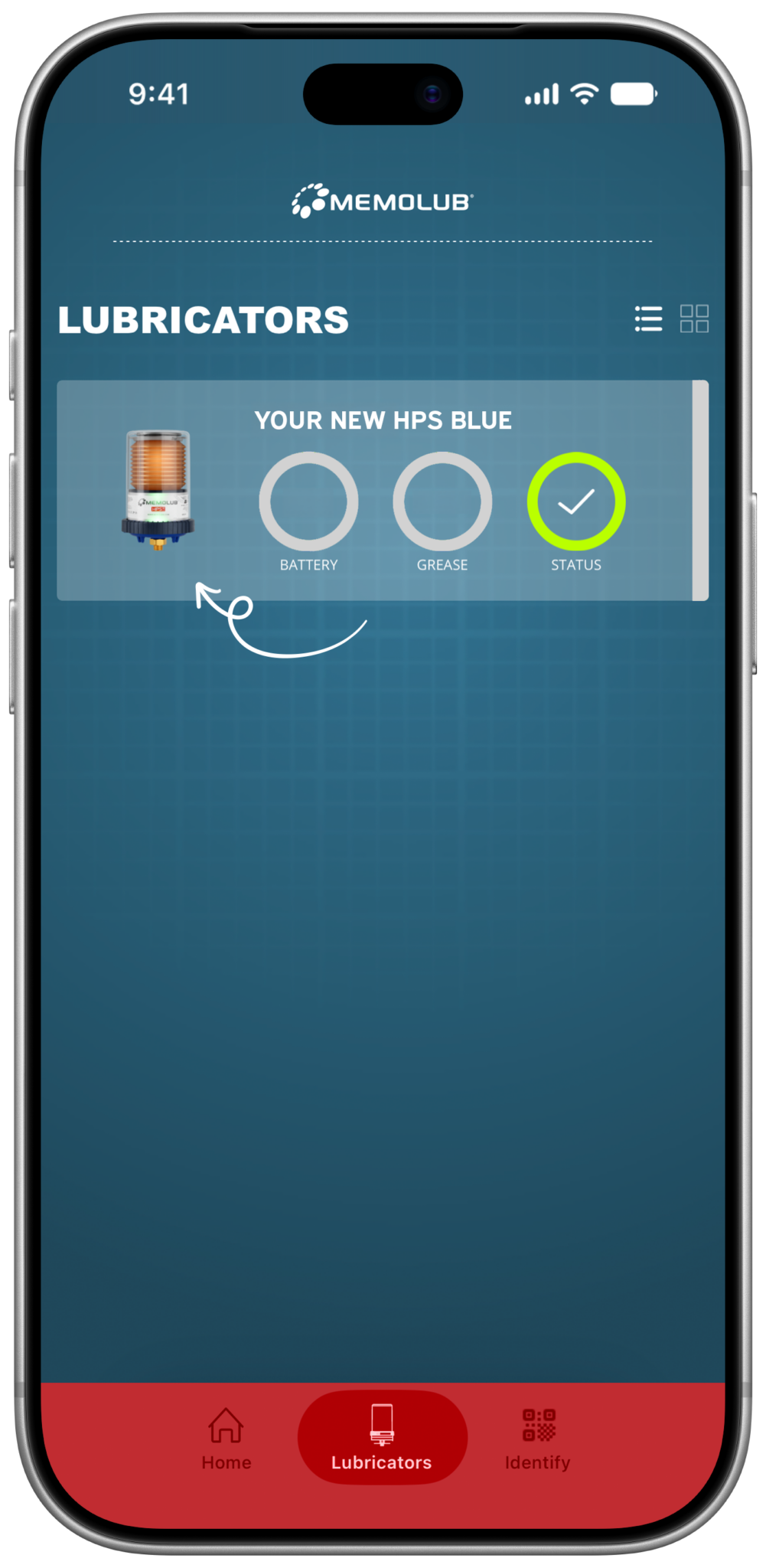
    Memolub App New List

    Select your new lubricator from the list.

  • 2

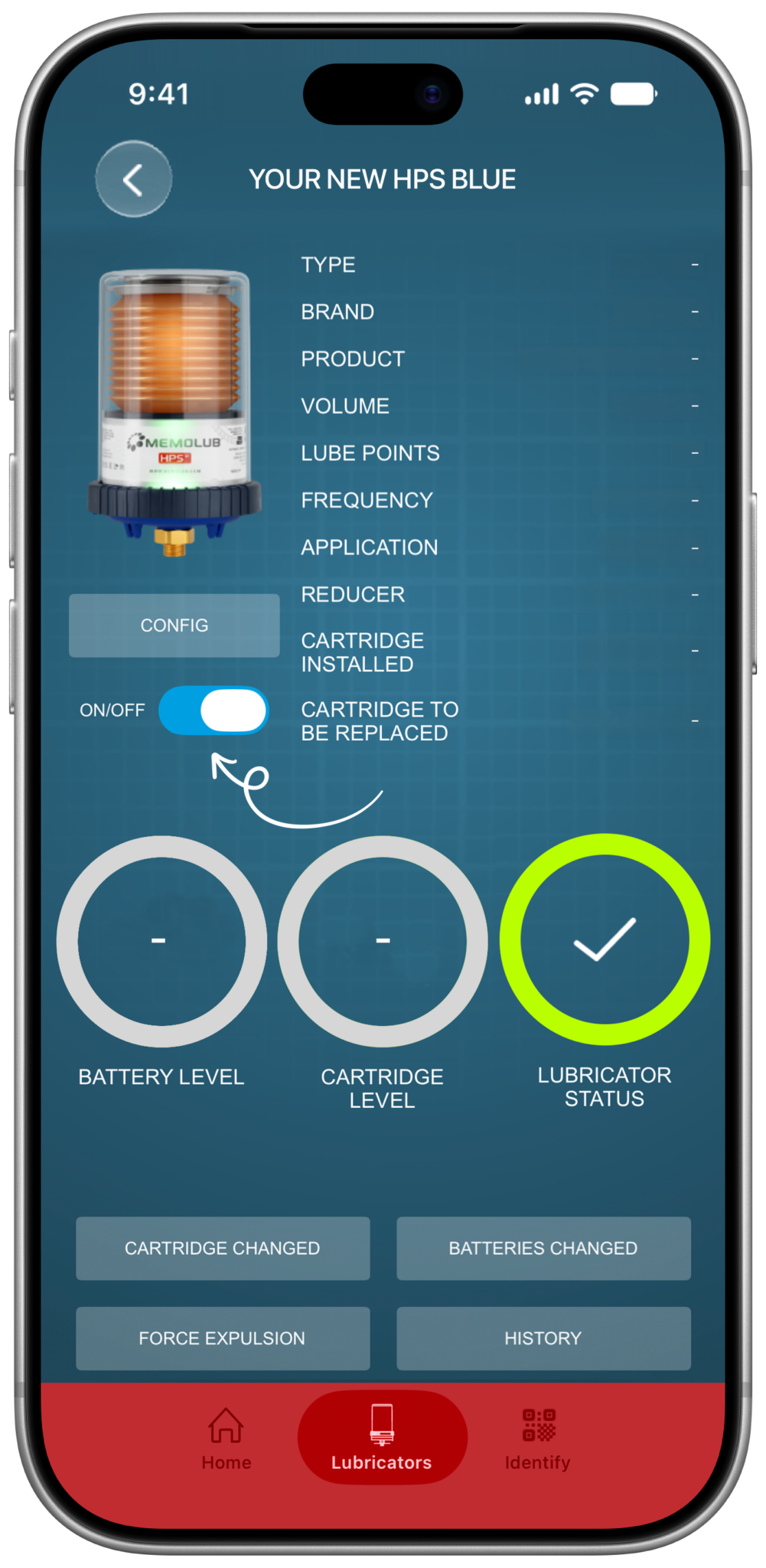
    Memolub App Initial Screen

    Toggle the lubricator OFF.

  • 3

    Memolub App Confirm Off

    Confirm you want to turn OFF the lubricator.

  • 4

    Memolub App Install Toggle On

    Toggle the lubricator ON.

  • 5

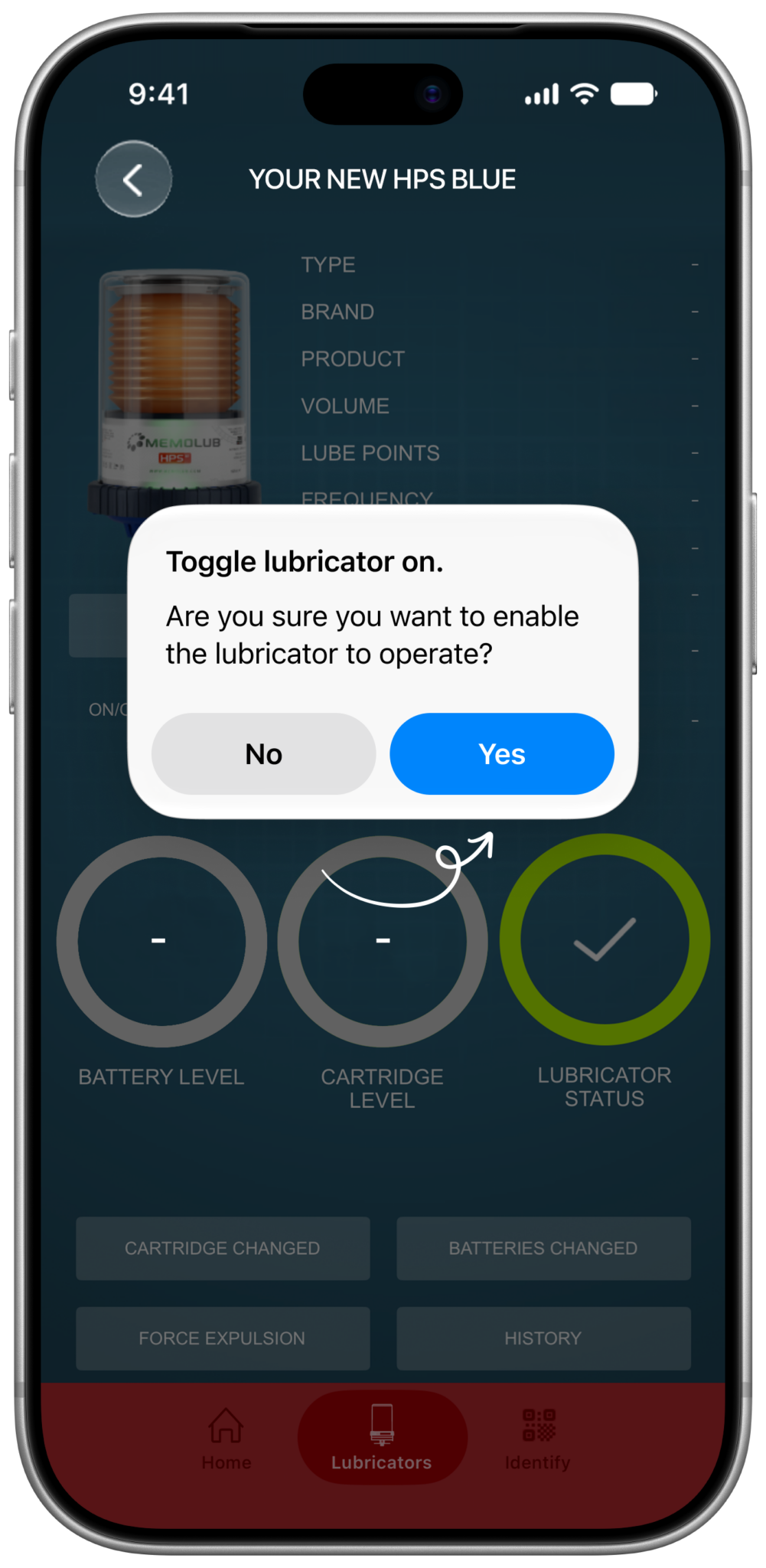
    Memolub App Confirm On

    Confirm you want to turn the lubricator ON.

  • 6

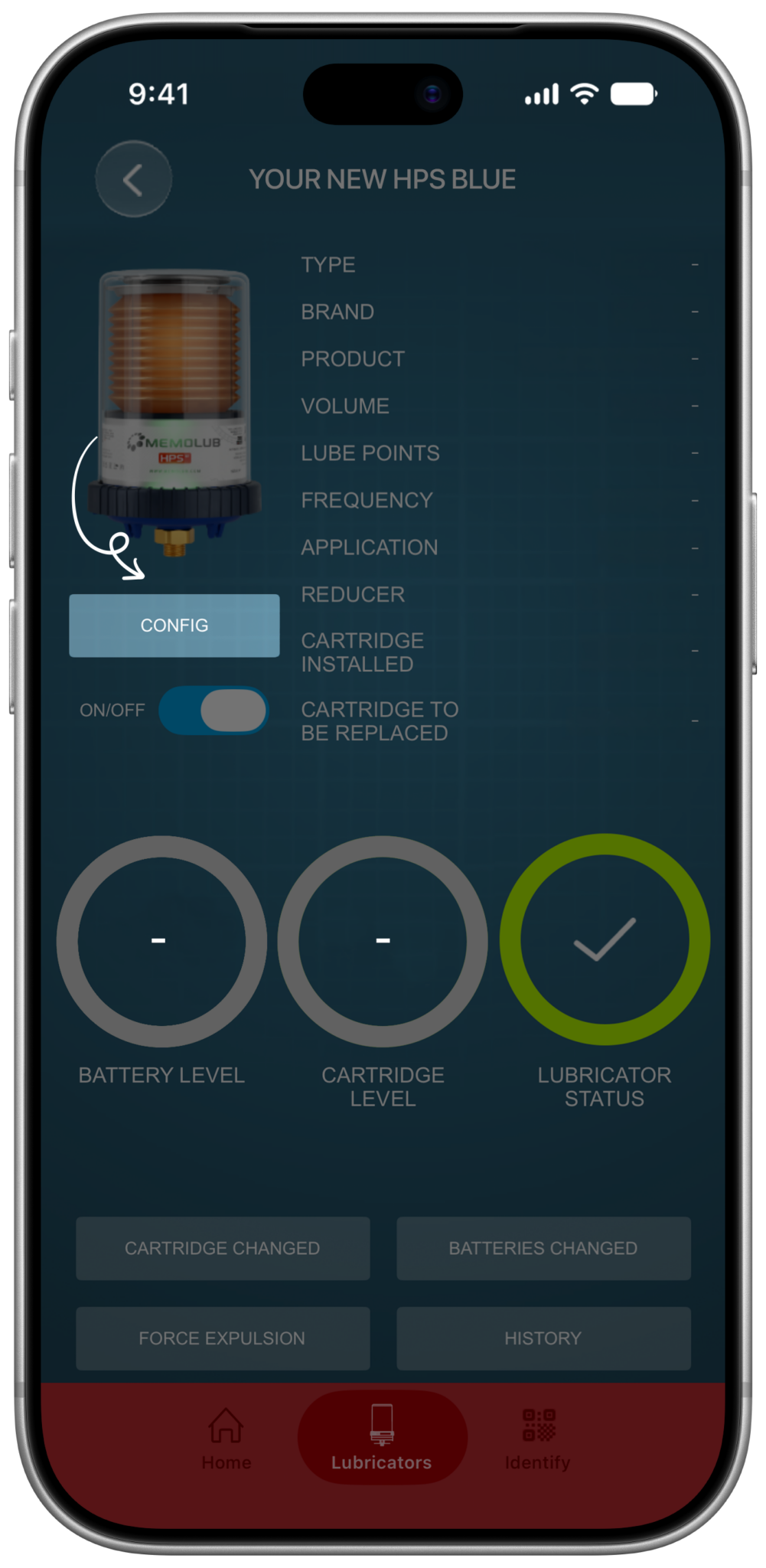
    Memolub App Configure Button

    Tap the config button to setup the lubricator.

  • 7

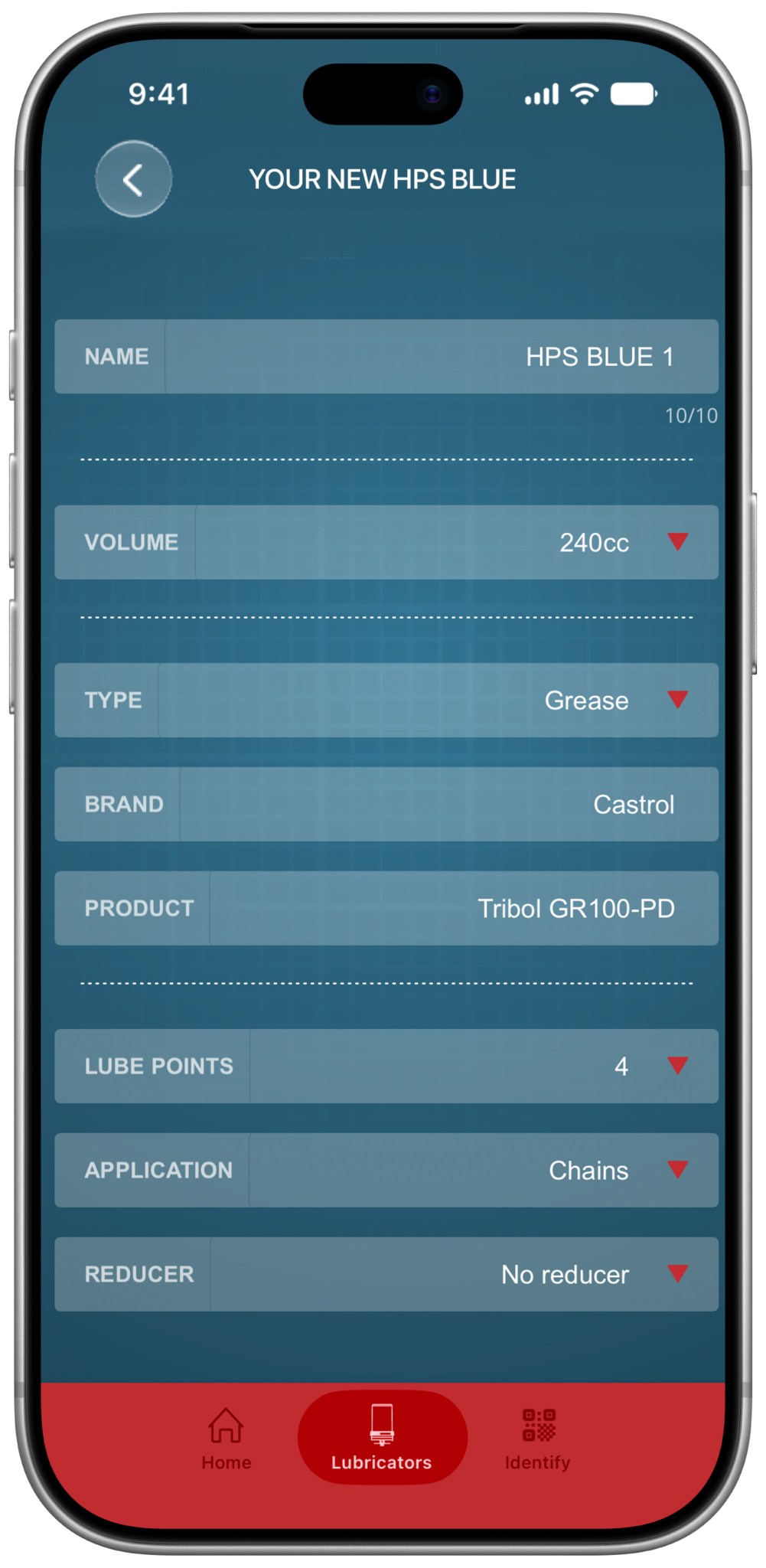
    Memolub App Settings Frame Completed

    Fill all the details: name, volume, lubricant type, brand, product, lube points, application and the number of installed reducers.

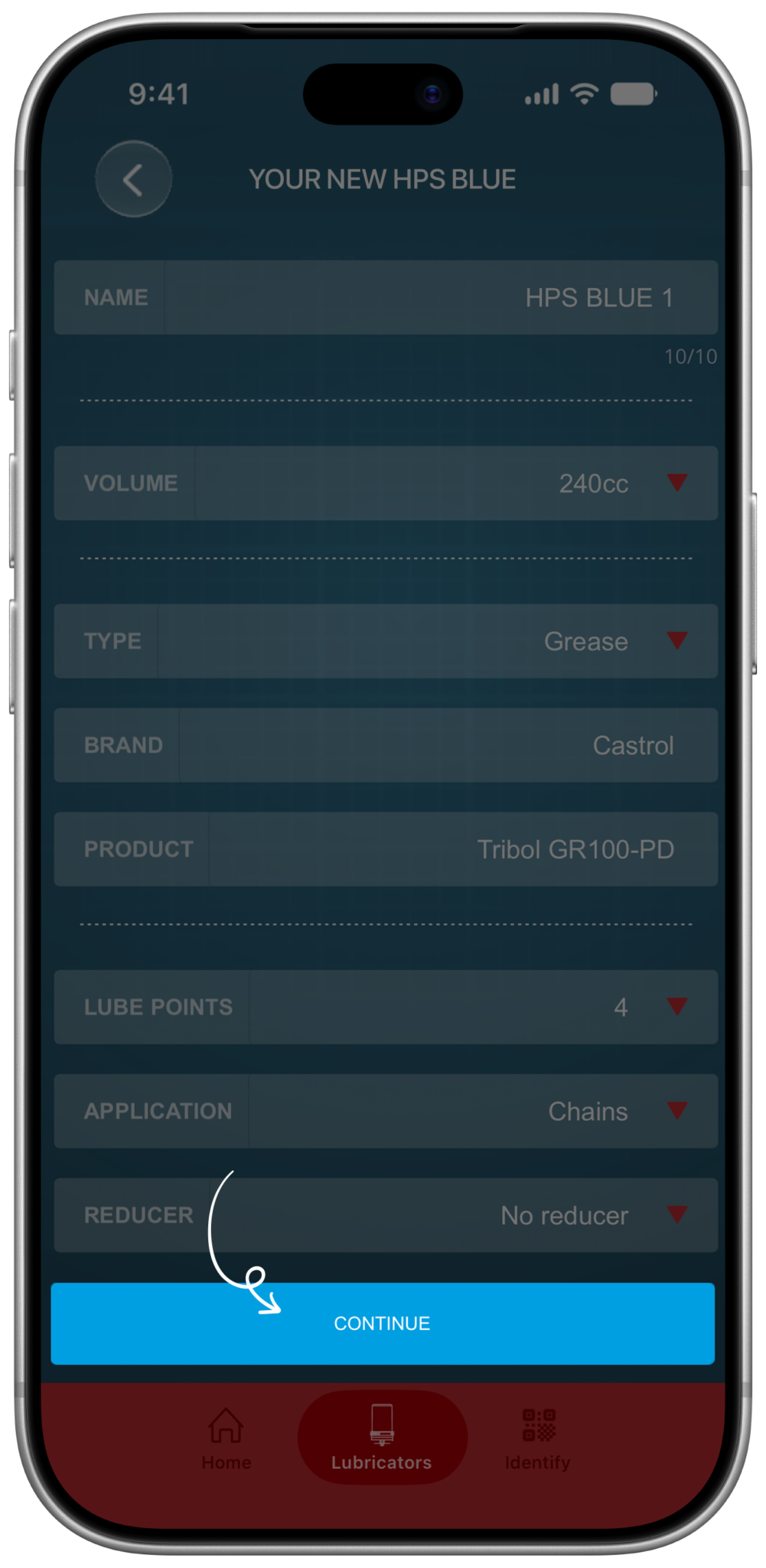
  • 8

    Memolub App Settings Frame Confirm Button

    Proceed by tapping "Confirm".

  • 9

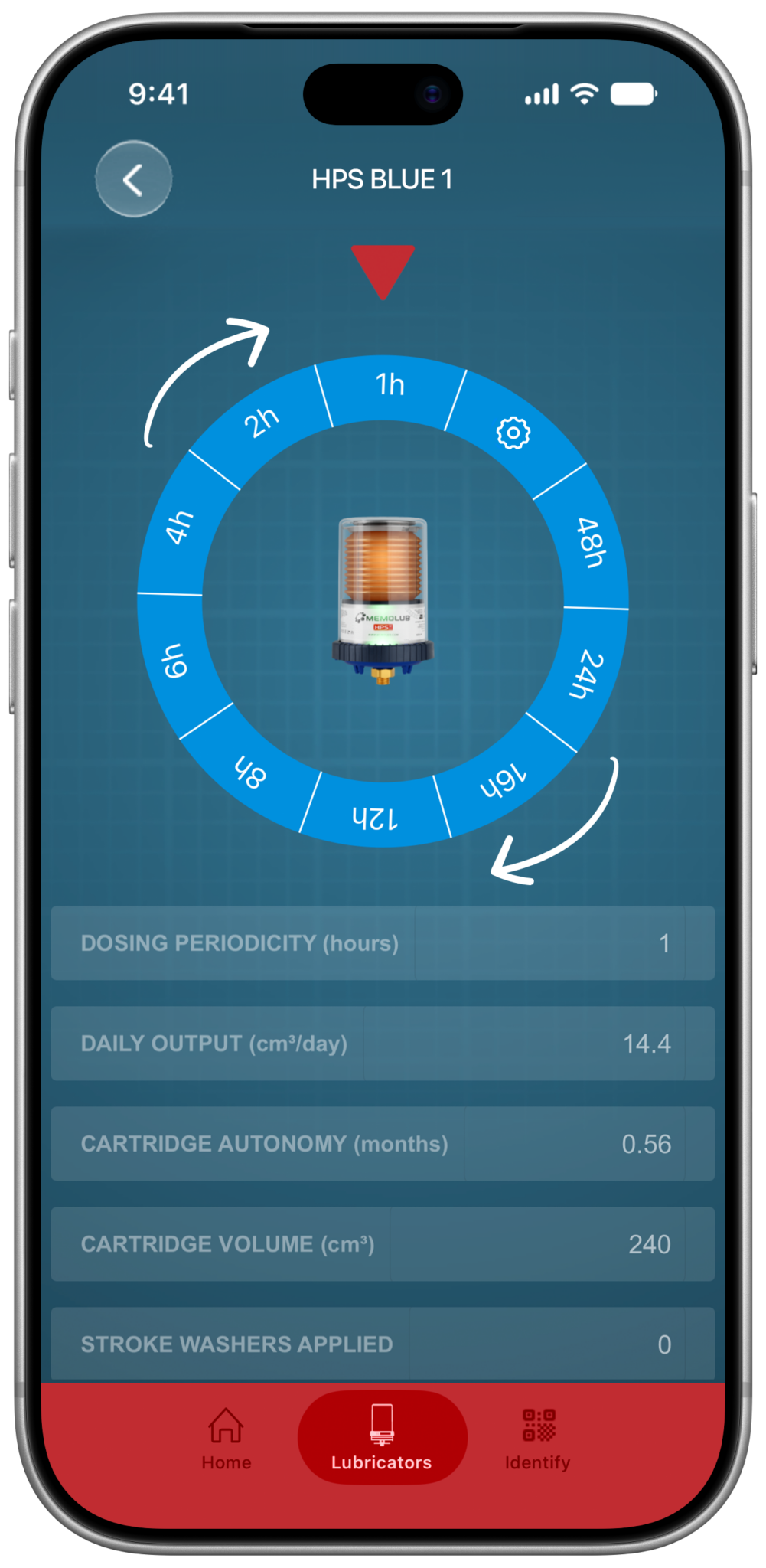
    Memolub App Settings Frame Wheel

    Select your preset frequency setting, or configure one yourself by moving the wheel to the gear icon.

  • 10

    Memolub App Settings Frame Wheel Confirm

    Tap the "Save & Finish".

  • 11

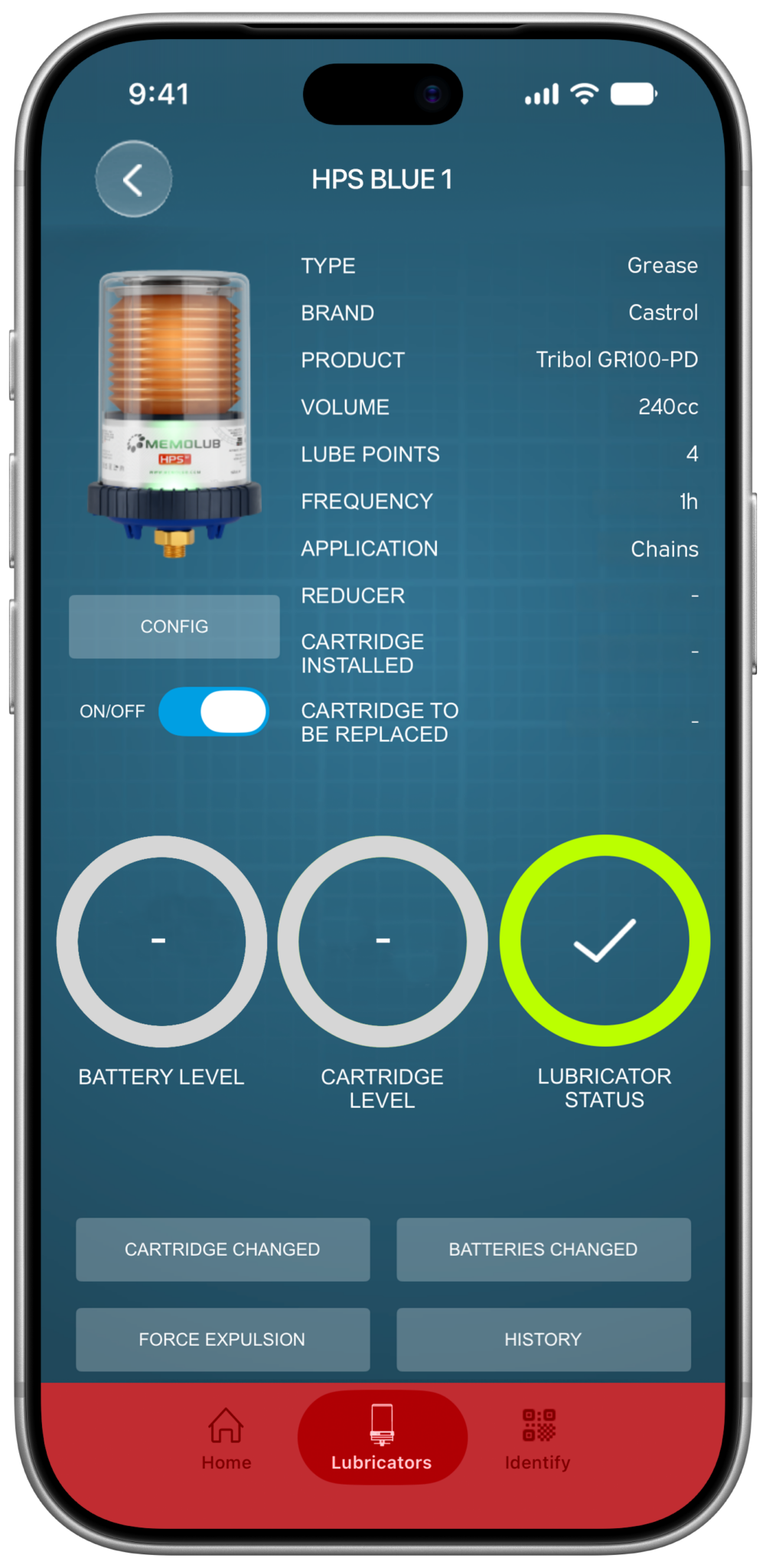
    Memolub App Allmost Done

    The lubricator is set now, but there are 2 more things to do.

  • 12

    Memolub App Install Batteries Changed Button Tap

    First, tap "Battery Changed" to set the level to 100%.

  • 13

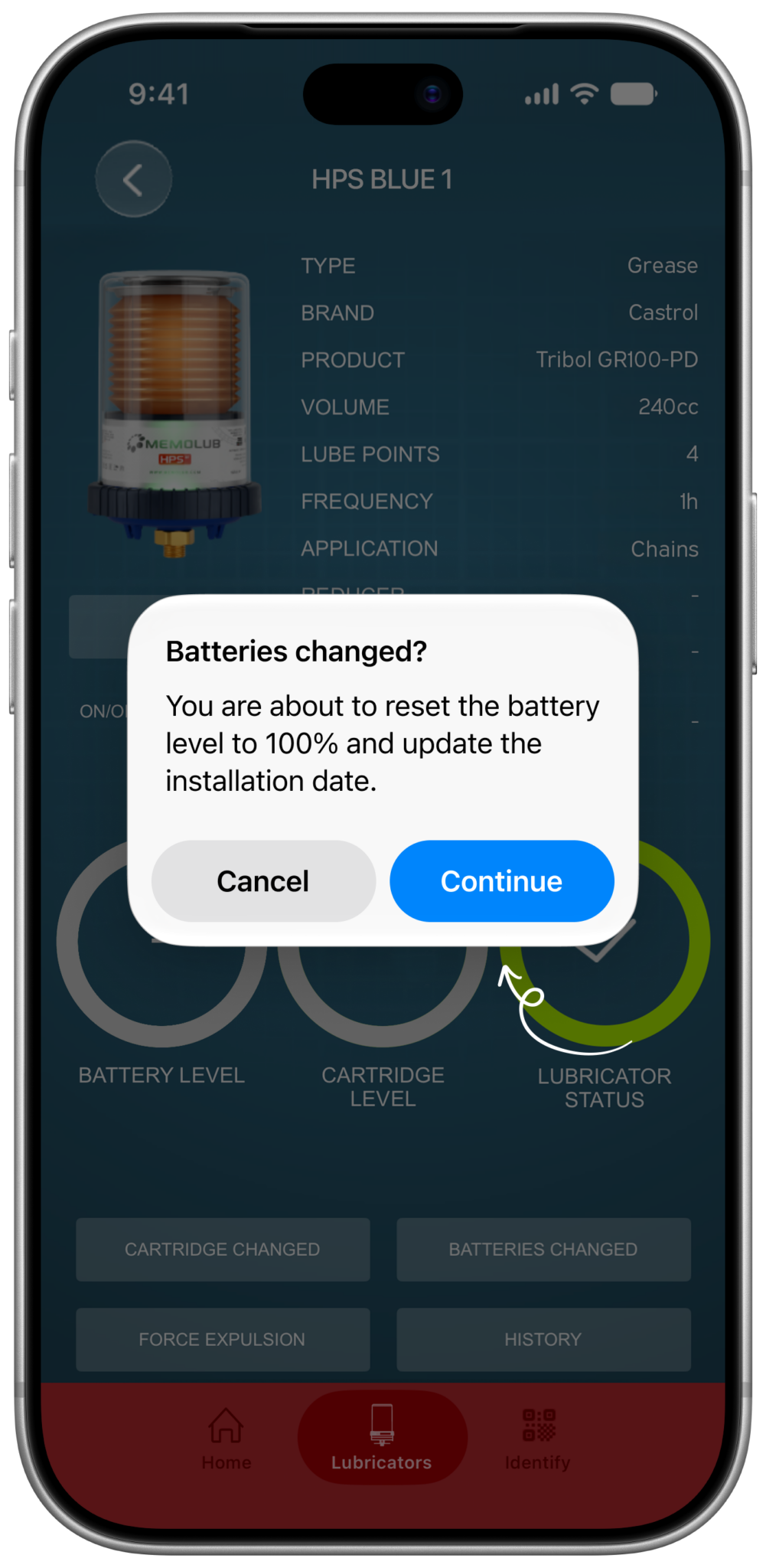
    Memolub App Confirm Battery Changed

    You have installed new batteries on installing the lubricator, please confirm.

  • 14

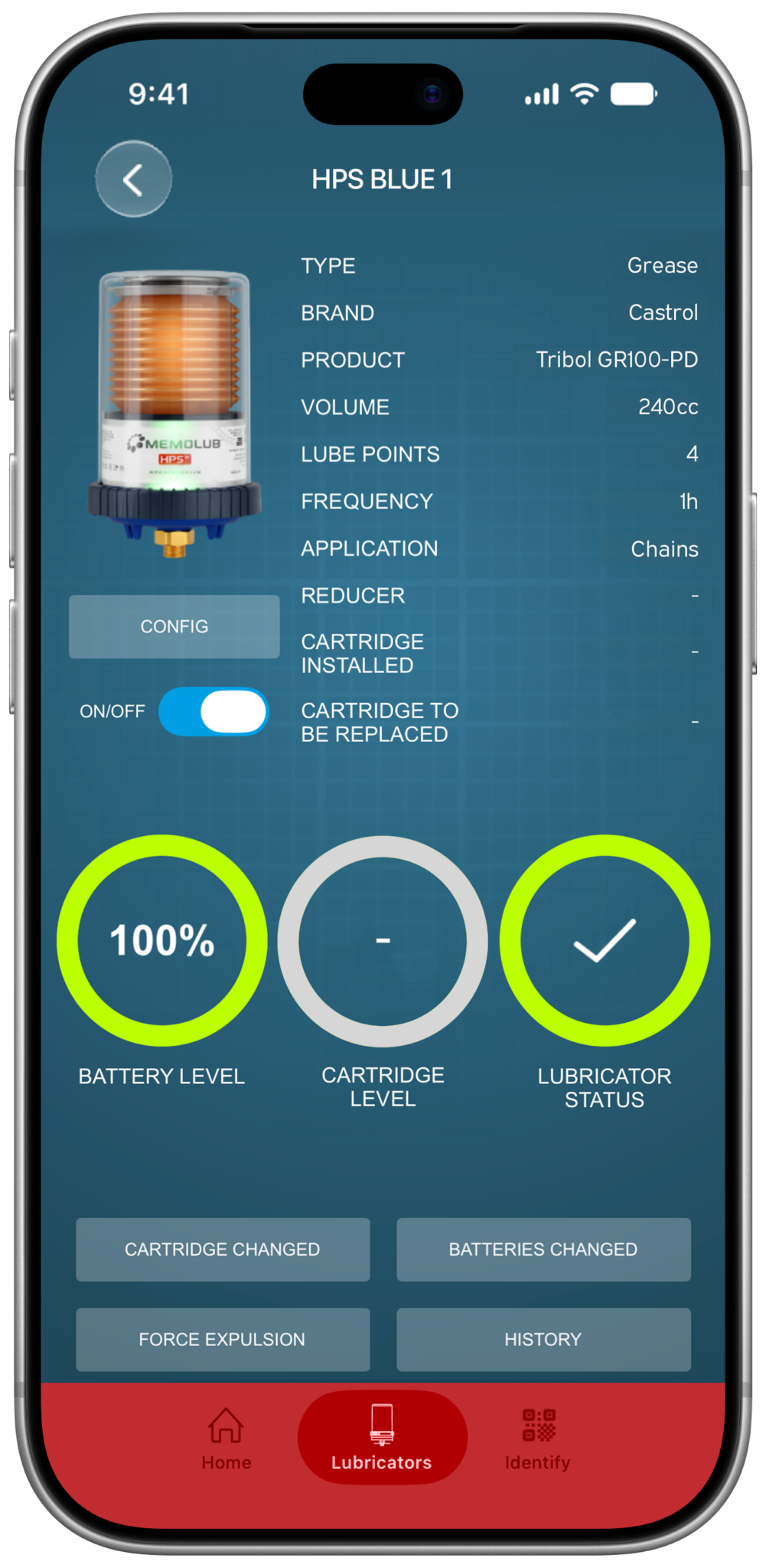
    Memolub App Battery100 set

    The battery level is now set to 100%.

  • 15

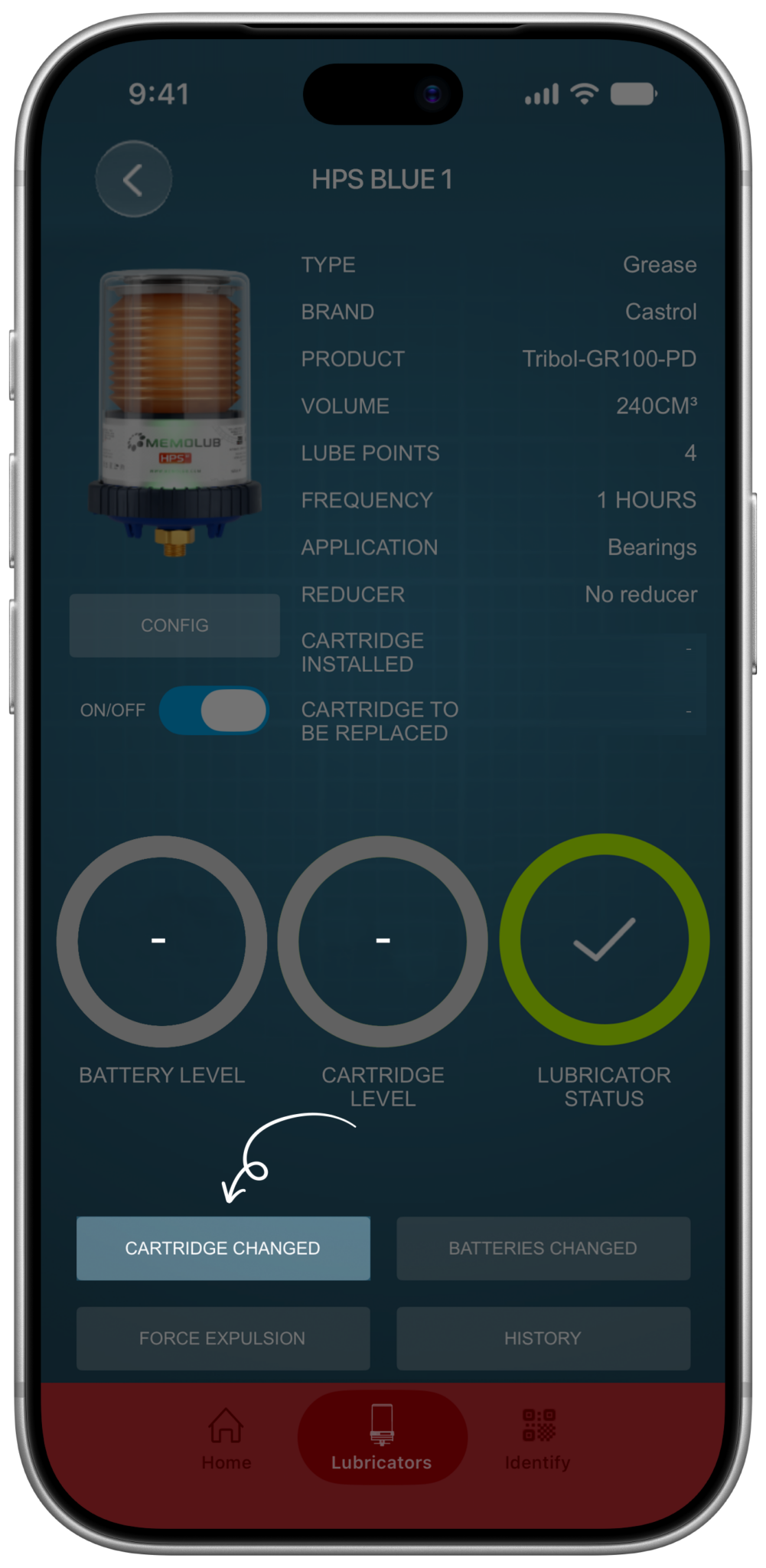
    Memolub App Install Cartridge Changed Button Tap2

    Secondly, tap "Battery Changed" to set the installation date of the cartridge.

  • 16

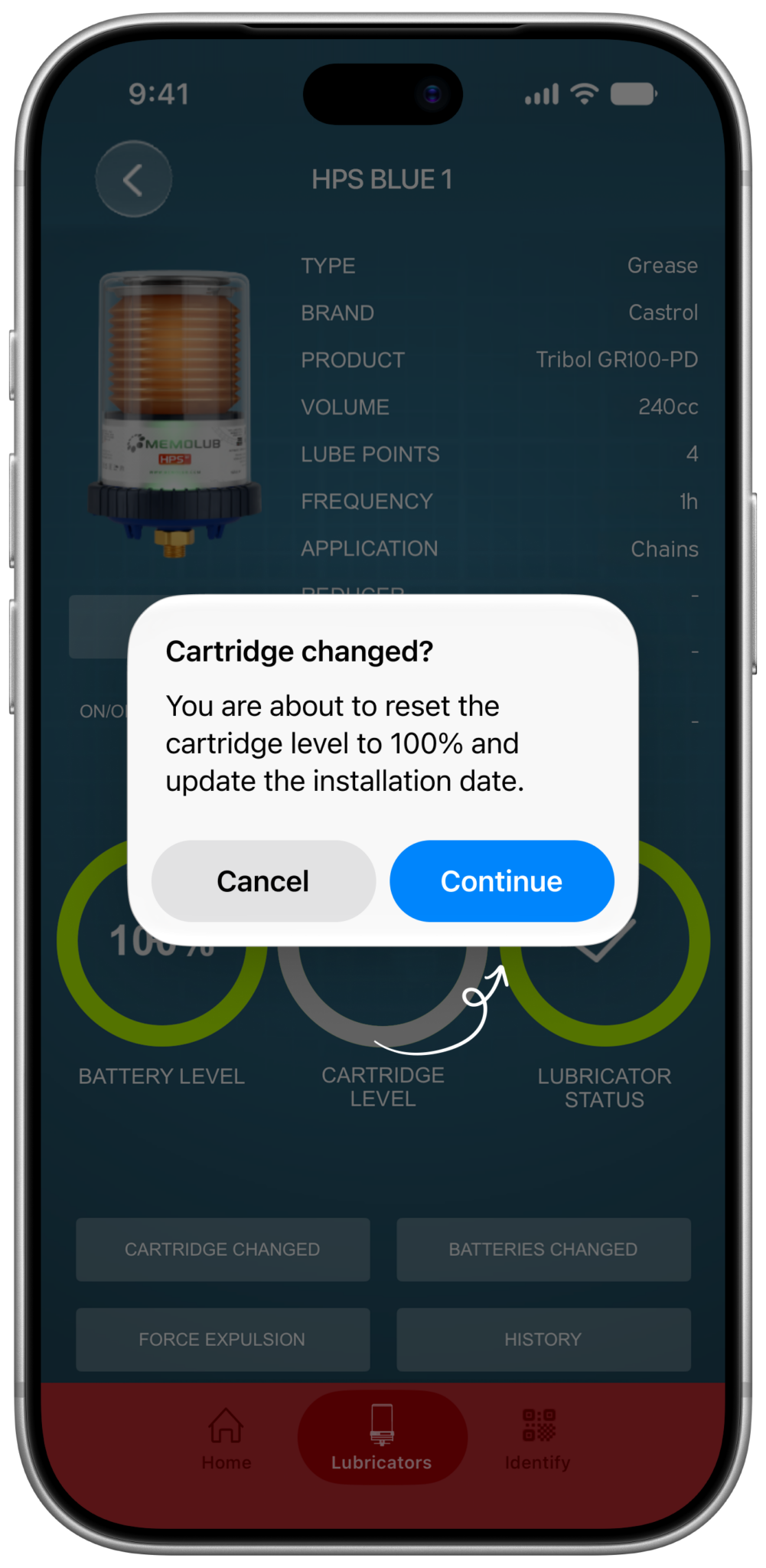
    Memolub App Confirm Cartridge Changed

    You have installed new cartridge when installing the lubricator, please confirm.

  • 17

    Memolub App Done

    The cartridge level is now set to 100%, the installation and replacement dates are set. You have completed the initial setup.

  • 1

    Memolub App New List

    Select your new lubricator from the list.

  • 2

    Memolub App Initial Screen

    Toggle the lubricator OFF.

  • 3

    Memolub App Confirm Off

    Confirm you want to turn OFF the lubricator.

  • 4

    Memolub App Install Toggle On

    Toggle the lubricator ON.

  • 5

    Memolub App Confirm On

    Confirm you want to turn the lubricator ON.

  • 6

    Memolub App Configure Button

    Tap the config button to setup the lubricator.

  • 7

    Memolub App Settings Frame Completed

    Fill all the details: name, volume, lubricant type, brand, product, lube points, application and the number of installed reducers.

  • 8

    Memolub App Settings Frame Confirm Button

    Proceed by tapping "Confirm".

  • 9

    Memolub App Settings Frame Wheel

    Select your preset frequency setting, or configure one yourself by moving the wheel to the gear icon.

  • 10

    Memolub App Settings Frame Wheel Confirm

    Tap the "Save & Finish".

  • 11

    Memolub App Allmost Done

    The lubricator is set now, but there are 2 more things to do.

  • 12

    Memolub App Install Batteries Changed Button Tap

    First, tap "Battery Changed" to set the level to 100%.

  • 13

    Memolub App Confirm Battery Changed

    You have installed new batteries on installing the lubricator, please confirm.

  • 14

    Memolub App Battery100 set

    The battery level is now set to 100%.

  • 15

    Memolub App Install Cartridge Changed Button Tap2

    Secondly, tap "Battery Changed" to set the installation date of the cartridge.

  • 16

    Memolub App Confirm Cartridge Changed

    You have installed new cartridge when installing the lubricator, please confirm.

  • 17

    Memolub App Done

    The cartridge level is now set to 100%, the installation and replacement dates are set. You have completed the initial setup.

Changing the setup of your lubricator

  • 1

    Memolub App Lubricators Tab List

    Select the lubricator you want to change from the list.

  • 6

    Memolub App Configure Button

    Tap the config button to alter the lubricator's configuration.

  • 7

    Memolub App Settings Frame Completed

    Change the values from the details list as prefered: name, volume, lubricant type, lubricant brand, product, lube points, application and the number of installed reducers.

  • 8

    Memolub App Settings Frame Confirm Button

    Proceed by tapping "Confirm".

  • 9

    Memolub App Settings Frame Wheel

    Alter your preferred preset frequency setting, or configure one yourself by moving the wheel to the gear icon.

  • 10

    Memolub App Settings Frame Wheel Confirm

    Tap the "Save & Finish".

  • 17

    Memolub App Done

    You have completed the setup change.

  • 1

    Memolub App Lubricators Tab List

    Select the lubricator you want to change from the list.

  • 6

    Memolub App Configure Button

    Tap the config button to alter the lubricator's configuration.

  • 7

    Memolub App Settings Frame Completed

    Change the values from the details list as prefered: name, volume, lubricant type, lubricant brand, product, lube points, application and the number of installed reducers.

  • 8

    Memolub App Settings Frame Confirm Button

    Proceed by tapping "Confirm".

  • 9

    Memolub App Settings Frame Wheel

    Alter your preferred preset frequency setting, or configure one yourself by moving the wheel to the gear icon.

  • 10

    Memolub App Settings Frame Wheel Confirm

    Tap the "Save & Finish".

  • 17

    Memolub App Done

    You have completed the setup change.

Memolub

Bollinckxstraat 43
1070 Brussels

+32 2 559 77 22
info@memolub.com

VAT: BE0462.320.311

Navigation.

  • About
  • News
  • Careers
  • Distributors
  • Support & Knowledge Base
  • Contact

Stay tuned.

Get social.

Copyright ©2026 Memolub International N.V/S.A. All Rights Reserved.

  • Terms & conditions
  • Disclaimer
  • Privacy policy